Manage Organization
Manage Organization
The Manage Organization page is where organization owners configure org-level
settings, membership, billing, and branding. Access to this page is restricted
to organization owners and administrators; non-admin users can view fewer
options or receive an access denied message.
Left-hand tabs
- General: edit the organization name and display name
- Notifications: configure global notification channels
- Billing Details: enter or update billing contact, billing address, and tax
information used on invoices.
- Licenses: view current license counts and usage, purchase additional seats,
or renew expiring licenses.
- Payment History: review past invoices, payments, and subscription activity.
- Members: invite, remove, or change roles for organization members; manage
pending invitations and role-based permissions.
- Customize: upload organization logo and set branding options shown in the
UI and on shared reports.
1 - General Options
General Options
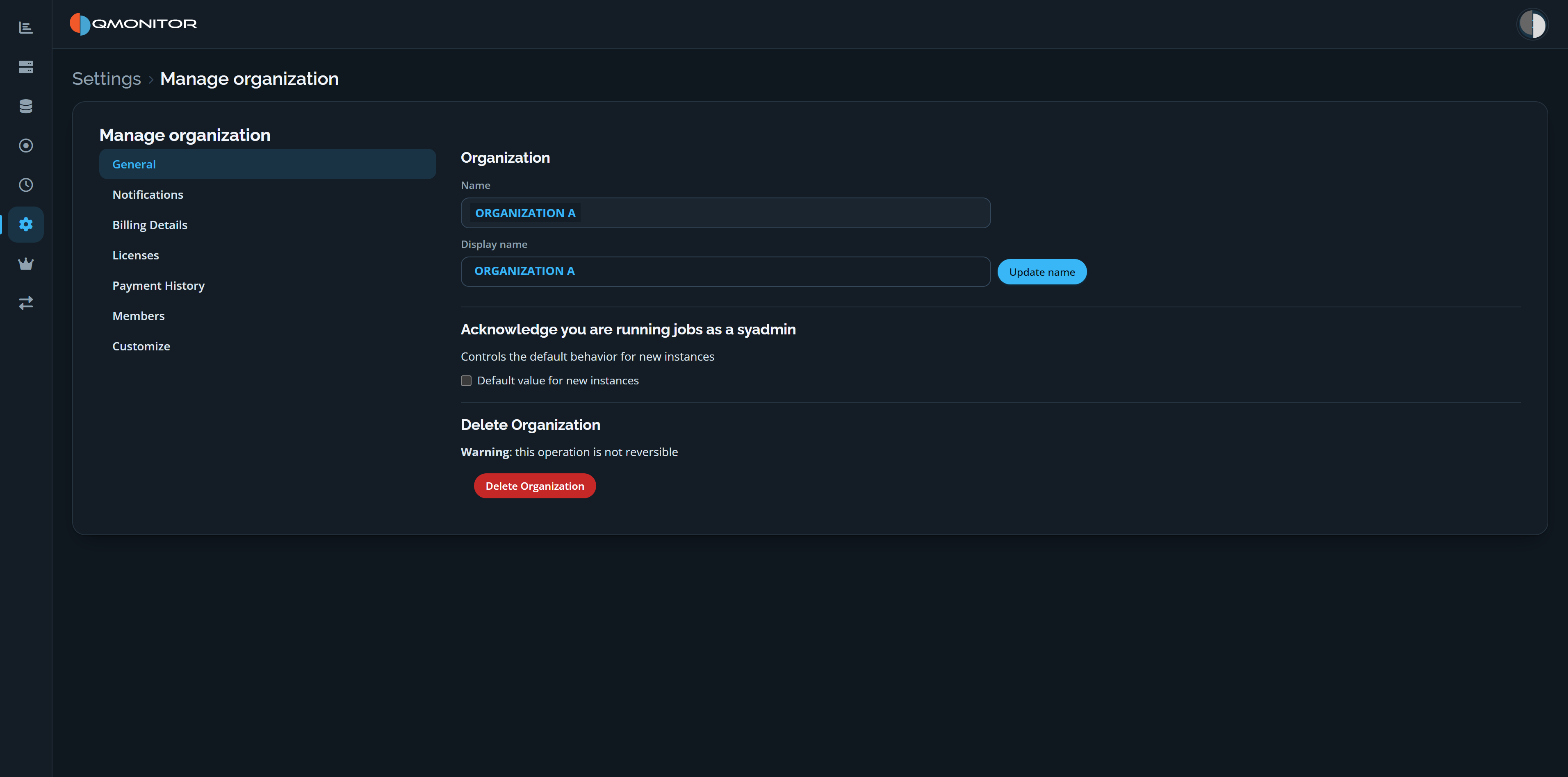 Manage organization page showing the General settings for organization name, default instance behavior, and deletion
Use the menu on the left to switch between General and other organization
settings, including Notifications, Billing Details, Licenses, Payment History,
Members, and Customize.
Organization name and display name
- Name: a machine-safe identifier used by tooling (ConfigWizard,
ConfigWizardCmd, agents). The actual name is sanitized to remove or replace
characters that could break scripts or client tools; avoid spaces and
punctuation when choosing an organization name.
- Display name: a human-friendly name shown in the UI and reports. Click
Update name to save a change to the display name.
Default instance settings
- Acknowledge you are running jobs as a sysadmin: the Default value for
new instances checkbox controls whether newly registered instances have
the acknowledgement enabled by default. This is only the default; it can be
changed per instance later.
Delete Organization
- Delete Organization permanently removes the organization and all
organization-scoped data. The page warns that this operation is irreversible;
it requires explicit confirmation (type-to-confirm). Only organization
owners can perform deletion.
2 - Notifications
Configure notification channels for QMonitor
This page configures how your organization receives alerts from QMonitor.
Use these settings to deliver operational notifications to the right channels
and reduce noise by choosing appropriate delivery methods per severity.
From the Notification settings page you can enable one or more channels,
configure their connection details, and test the channels that provide a
Test button before saving.
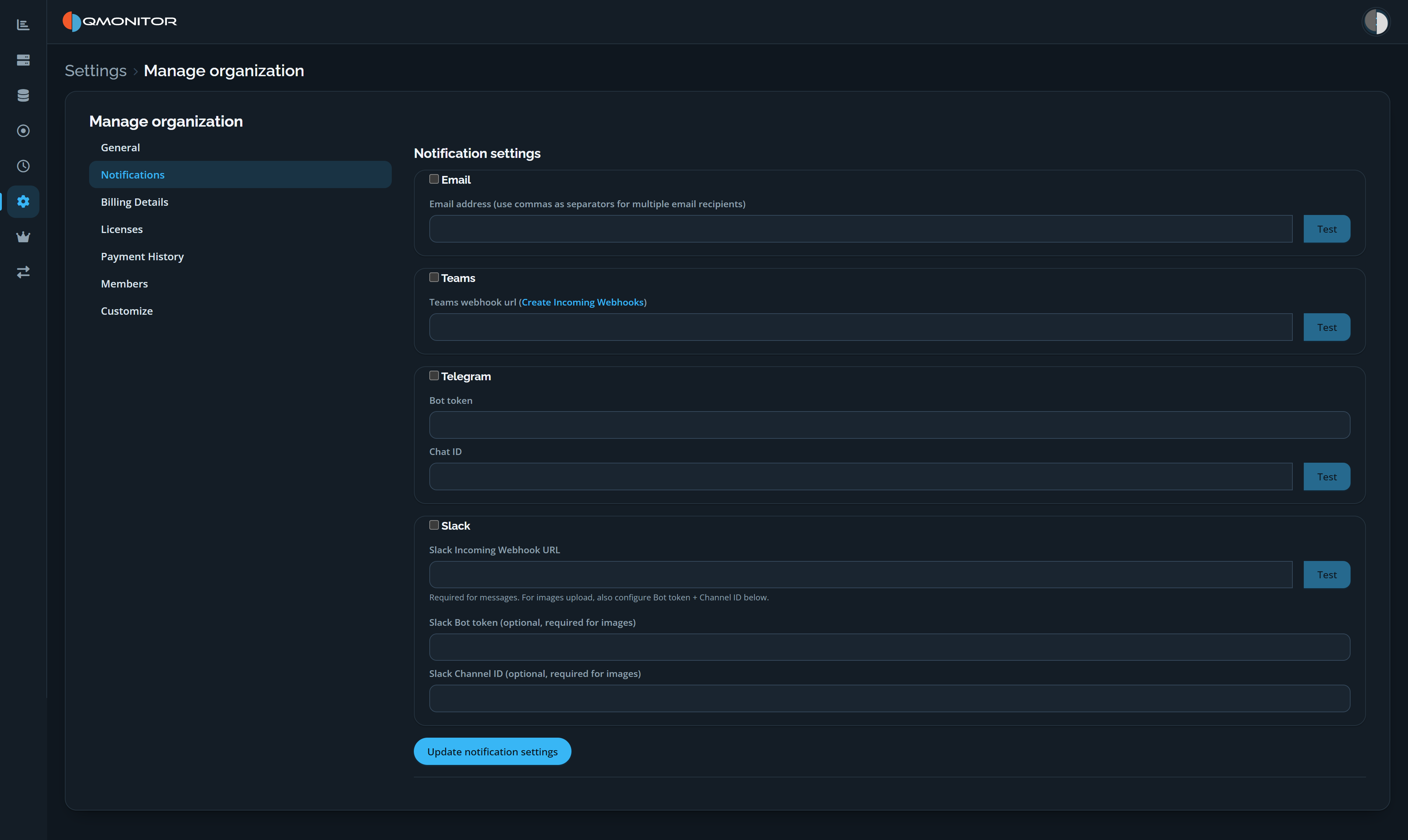 Organization notification settings for Email, Teams, Telegram, and Slack
Supported notification channels
QMonitor currently supports the following notification channels:
- Email
- Microsoft Teams
- Telegram
- Slack
Enable each channel independently using its checkbox. The Test button is
shown for Email, Teams, and Telegram; the Slack section in the screenshot has
no Test button. Use Update notification settings at the bottom of the page
to save your changes.
Email notifications
- Enable Email
- Enter one or more email addresses (use commas to separate multiple recipients)
- Click Test to verify delivery
- Click Update notification settings to save the configuration
Microsoft Teams notifications
QMonitor sends notifications to Microsoft Teams using an Incoming Webhook URL. Messages are delivered to a specific channel as Adaptive Cards and may include text and images (graphs associated with issues).
How to enable
- In Microsoft Teams, open the target Team and Channel
- Click More options next to the channel name
- Select Workflows
- Create a new Incoming Webhook
- Copy the generated Webhook URL
- Paste it into QMonitor → Teams webhook url
- Click Test to verify delivery
- Click Update notification settings to save the configuration
If you do not have access to the Workflows section contact your Teams administrator
Telegram notifications
Telegram notifications are sent by a Telegram bot to a channel.
Step-by-step setup
1. Create the bot
- Open Telegram and search for @BotFather
- Send:
/newbot
- Choose a name and a username
BotFather will return a Bot Token like:
123456:ABC-defGHI...
This value goes into Bot token in QMonitor.
2. Create a Telegram channel
- Telegram → New Channel
- Choose a name
- Set it as Private (recommended)
- Create the channel
3. Add the bot as administrator
- Open the channel → Info → Administrators
- Add your bot (e.g. @thenameyouchooseearlier)
- (Mandatory) Grant at least “Can post messages” permission
4. Retrieve the Channel Chat ID
- Send any message in the channel
- Open in a browser:
https://api.telegram.org/bot<YOUR_BOT_TOKEN>/getUpdates
- Look for the
chat section in the JSON response:
"chat": {
  "id": -1003314549127,
  "title": "ChannelName",
  "type": "channel"
}
The Chat ID is the negative number (e.g. -1003314549127).
Final parameters to enter in QMonitor
- Bot token → Telegram bot token
- Chat ID → Channel chat ID
After entering the bot token and chat ID, click Test to verify delivery,
then click Update notification settings to save.
Slack notifications
Slack notifications support:
- Text messages via Incoming Webhooks
- Images (optional) via Slack Bot API
1. Create a Slack App
- Go to https://api.slack.com/apps
- Click Create New App → From scratch
- Choose a name (e.g. QMonitor)
- Select the workspace
2. Enable Incoming Webhooks (required)
- Features → Incoming Webhooks
- Activate Incoming Webhooks → ON
- Add New Webhook to Workspace
- Select the target channel
- Copy the Webhook URL
This value goes into Slack Incoming Webhook URL.
3. Enable image upload (optional)
Required only if you want to also see the notification’s associated images (graphs contained in issues).
Add the following bot scopes in OAuth & Permissions:
- chat:write
- files:write
- channels:read
- groups:read (only for private channels)
After adding scopes, reinstall the app.
4. Retrieve Bot Token
Copy the Bot User OAuth Token (xoxb-…).
This value goes into Slack Bot token.
5. Retrieve Channel ID
Open Slack in the browser and navigate to the channel.
URL example:
https://app.slack.com/client/TXXXXXXX/CYYYYYYY
Use CYYYYYYY (public) or GYYYYYYY (private).
This value goes into Slack Channel ID.
6. Invite the bot to the channel
Inside the Slack channel, run:
/invite @QMonitor
Without this step, image uploads will not be visible.
Final parameters to enter in QMonitor
- Webhook URL → required
- Bot token → required only for images
- Channel ID → required only for images
Click Update notification settings to save the configuration. The Slack
section does not show a separate Test button.
3 - Billing Details
Billing Details
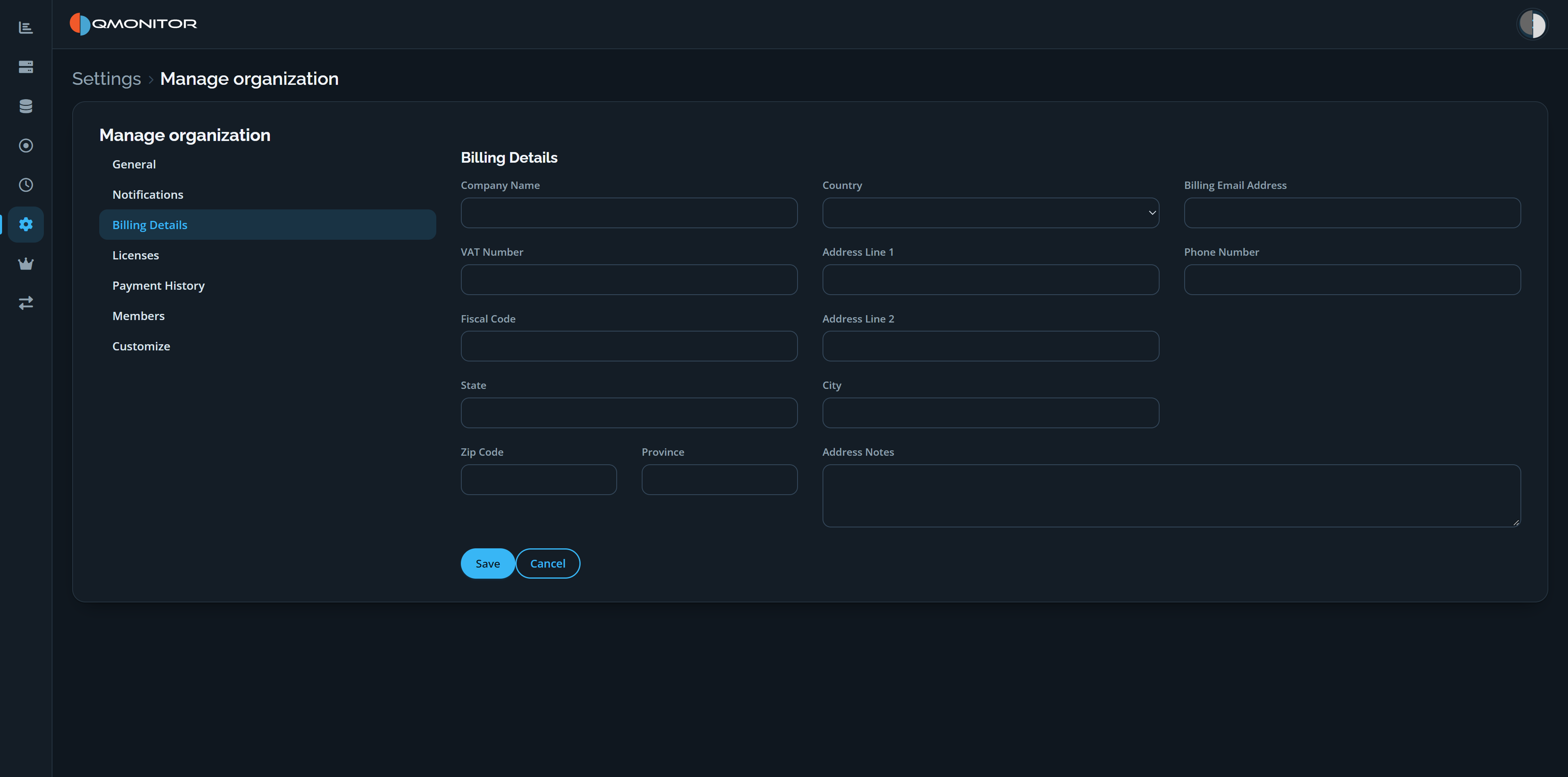 Manage organization page showing the Billing Details form
- Enter the company’s billing details used to generate invoices. The form
includes company name, country, billing email address, VAT number, fiscal
code, phone number, address lines, city, state, province, ZIP code, and
address notes.
- Changing the country in the form will show or hide additional country-
specific fields. For example, selecting Italy exposes “Certified Email
Address (PEC)” and “SDI Code” fields required on Italian invoices.
- The information you provide here is printed on invoices. Keep it accurate
to avoid delays or invoice re-issues.
- Click Save to apply changes or Cancel to discard them.
Purchase prerequisites and VAT rules
- You must complete the billing form before purchasing licenses; the system
will block checkout until required billing fields are provided.
- EU reverse-charge VAT: if your company is in an EU country, reverse-charge
treatment applies only when you supply the required identifiers (for
example VAT Number and/or national fiscal code as applicable). If you do
not provide the necessary information, VAT will be applied to the license
price and included on the invoice.
Sanctions and restricted sales
- We cannot sell licenses to entities or individuals located in countries
sanctioned by the European Union or the Italian Republic. This includes,
but is not limited to, Russia, Iran, and Afghanistan.
- If your billing address or company registration is in a sanctioned
jurisdiction, purchases will be declined.
Tips and support
- Use official company identifiers (VAT or fiscal codes) to ensure correct
tax treatment and avoid invoice corrections.
- If you need assistance completing country-specific fields, contact your
finance team or open a support ticket via the Help menu.
4 - Licenses
Licenses
The Licenses page shows organization licenses, how they are used, and controls
to renew or purchase licenses.
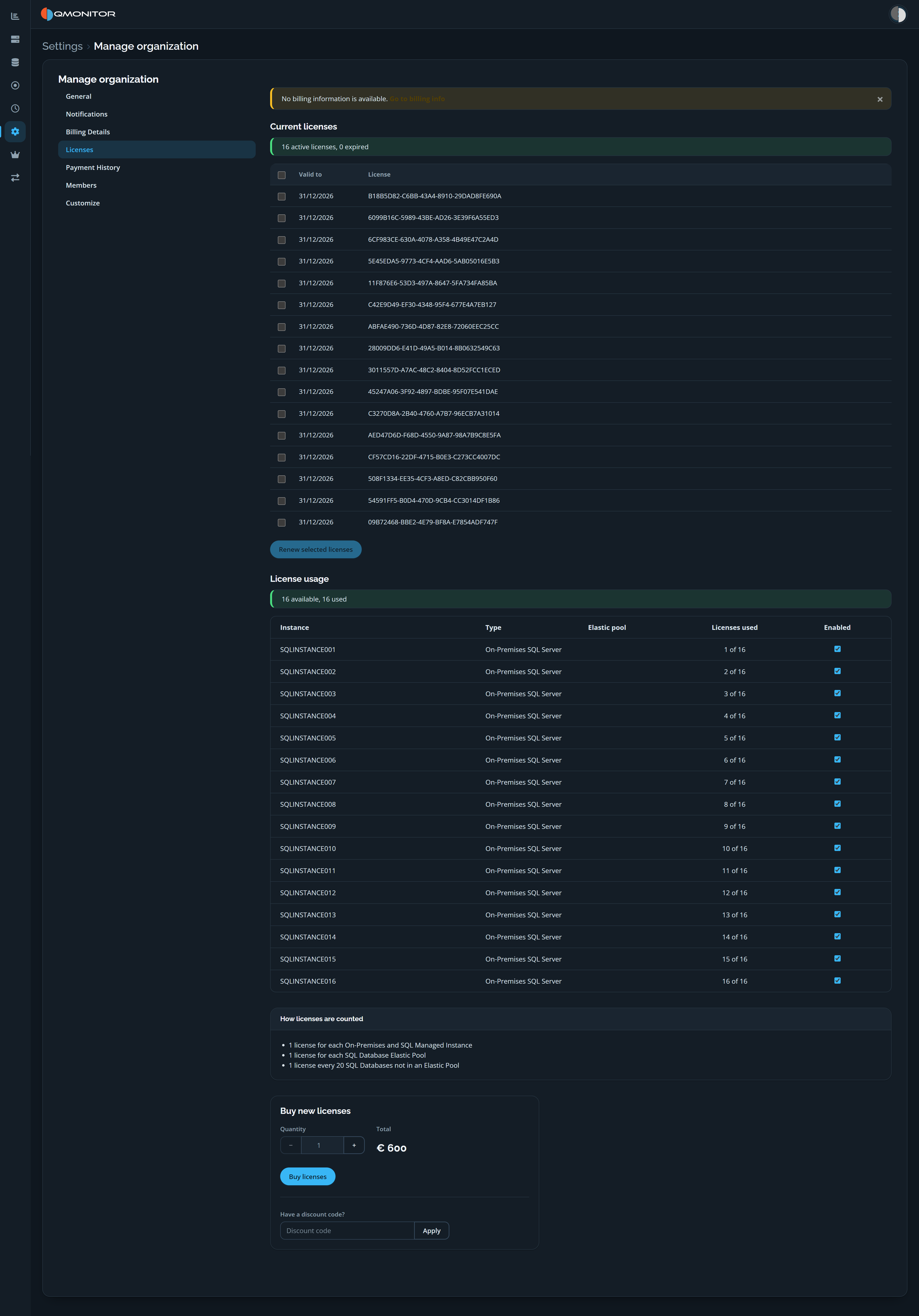 Organization Licenses page showing current licenses, per-instance usage, and purchase controls
Current licenses
The summary reports the number of active and expired licenses. The table lists
each license’s expiration date and license identifier; select one or more rows
to renew them with Renew selected licenses.
If billing information is missing, a notice links to Billing Details
before purchase. Payment is processed by Stripe; QMonitor does not store
payment methods or credit card numbers.
License usage
The usage summary shows how many licenses are available and used. The table
lists each instance, its type, elastic pool (when applicable), licenses used,
and whether it is enabled.
The page explains how license usage is counted:
- One license for each on-premises SQL Server or SQL Managed Instance.
- One license for each SQL Database elastic pool.
- One license for every 20 SQL Databases that are not in an elastic pool.
Buy new licenses
Use the Buy new licenses controls to choose a quantity, review the total,
and optionally apply a discount code before selecting Buy licenses.
Billing details must be complete before checkout.
5 - Payment History
Payment History
The Payment History page lists payments and invoices for the organization.
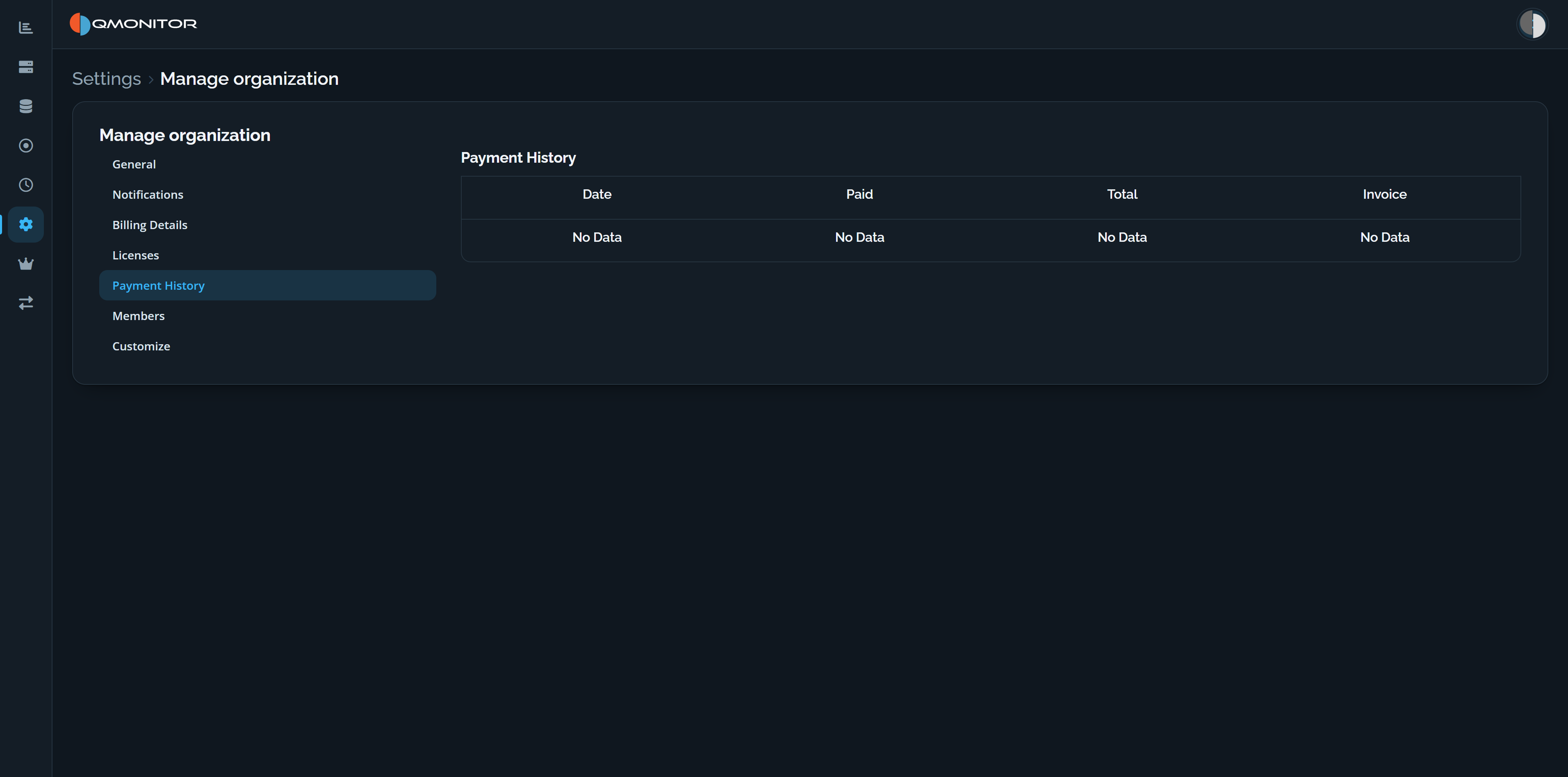 Payment History page showing the Date, Paid, Total, and Invoice columns
Payment history table
- Date: payment or invoice date.
- Paid: amount paid.
- Total: total shown on the invoice.
- Invoice: when available, a link to open or download the invoice PDF.
If the organization has no payment records, the table displays No Data in
each column, as shown in the screenshot.
6 - Members
Members
This page lets organization owners manage access and invitations.
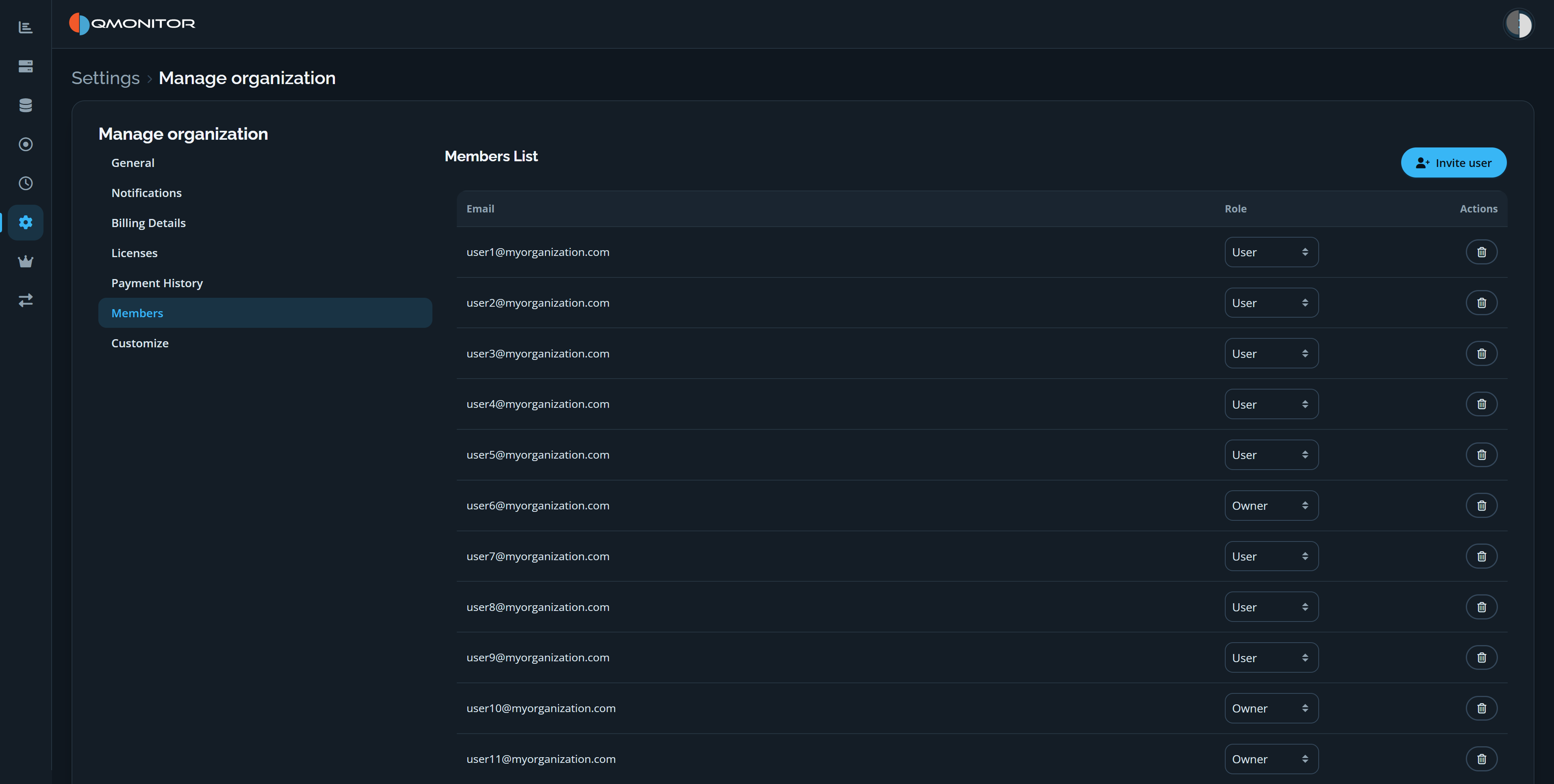 Members page showing the Invite user button and member roles and actions
Access and invitations
- Initially only organization owners can access the Manage Organization pages.
- Owners can invite new users with the Invite user button at the top-right.
- The invite dialog lets you enter an email address or copy an invitation
code to share directly. The dialog shows the code immediately for manual
distribution.
- The invited user receives an email with the invitation link and code.
If the user is not registered, they must sign up first and then redeem the
invitation code or follow the link to join the organization.
Members list
- The members table shows each user’s email, role, and available actions.
- Use the Role dropdown to change a member’s role between Owner and
User.
- Use the delete action (trash icon) to remove a member from the organization.
- Role changes and removals may require confirmation.
Behavior and tips
- Use Owner role sparingly; owners can manage billing, policies, and members.
- Prefer inviting users to a role of “User” and elevate to Owner only when
necessary.
- Invitations expire after a limited time; resend if a user reports an
expired invite.
7 - Logo and Branding
Logo and Branding
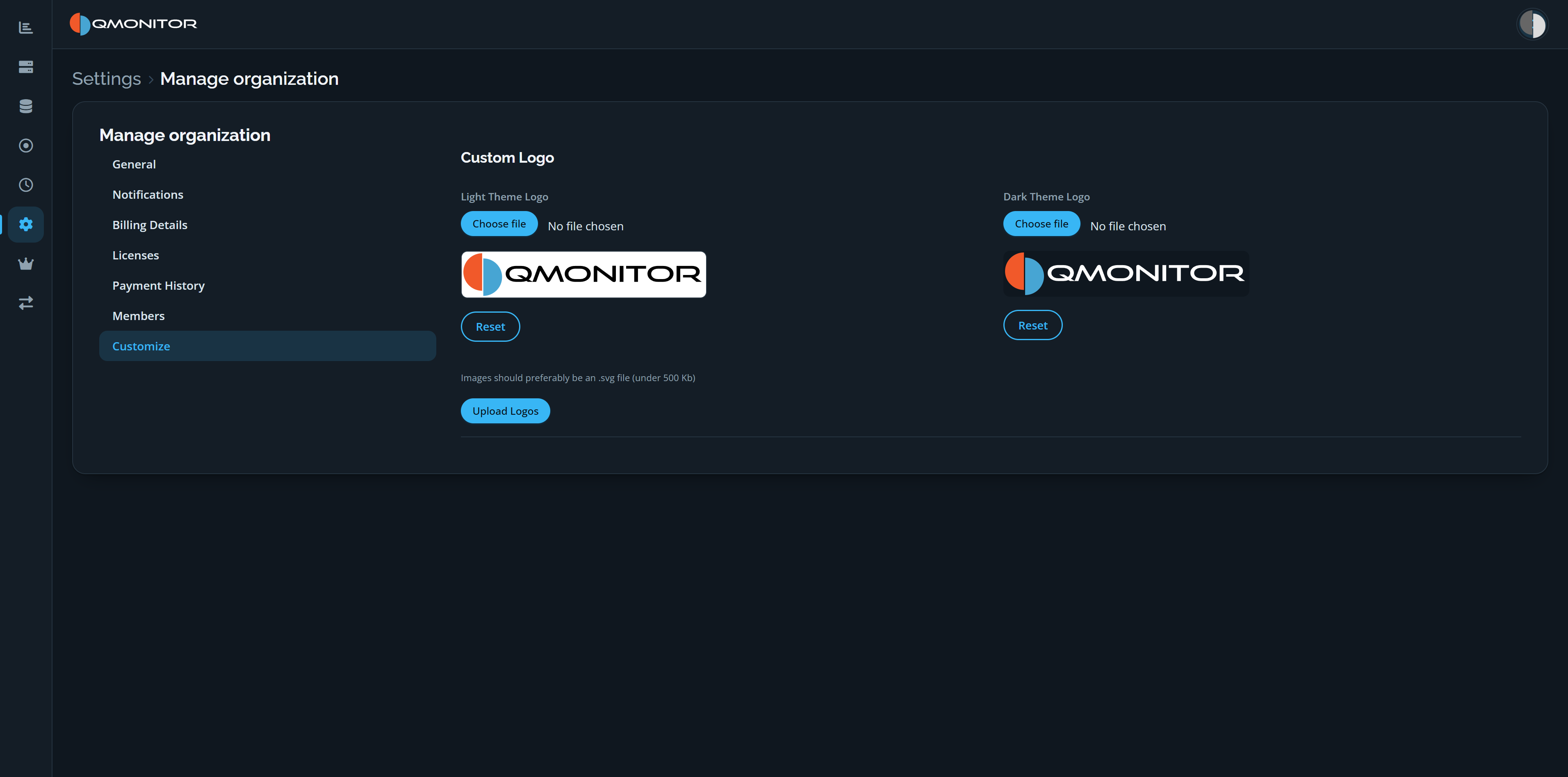 Customize page with separate Light Theme Logo and Dark Theme Logo upload controls
Organization logo
- Current logo: the page displays the organization’s current logo for both
themes so you can verify what users see.
- Theme-specific logos: you can upload a separate logo for Light and Dark
themes to ensure good contrast and legibility in both modes.
- Choose a file for each theme, then select Upload Logos to apply the
selected images. The page recommends using SVG files under 500 KB.
Reset logos
Each theme has its own Reset button. Use it to revert that theme’s logo
to the product default; resetting one theme does not reset the other.